

OLP Connect
OLP Connect allows you to manage your protection applications efficiently. Integrated tools for handling medical conditions and submitting digital Declaration of Health forms are available. The user-friendly interface provides progress updates, ensuring you stay informed. Access training videos, webinars, or contact our protection sales team for more information.
Stay on top of your pipeline and nurture existing clients with instant notifications for lapses, bounced direct debits, and cancellations, giving you the opportunity to ensure your clients retain the cover they need, rather than simply cancelling.
In 2025, our recent update allows you to quickly update payment details in the Existing Business Agent Hub (EBAH) for your customers. You can now easily change payment collection dates, enter complete bank details, and select collection dates for any policy arrears.

“Continuing to enhance and streamline our processes and platforms is a core priority for us, both to aid the business development of our intermediary partners, and to ensure better customer experience and outcomes.”
- Julie Godley, Director of Intermediary, Retail Protection
More from OLPC
Instant decisions with dynamic underwriting
Experience our seamless underwriting journey in OLPC, delivering instant point of sale decisions for 79% of submissions. Enjoy faster, more efficient processing for you and your clients.
Streamline your trusts online
It’s simple and efficient—complete the process online with just a few extra steps. No more signatures or witnesses needed, ensuring trusts are in place from the start, eliminating paperwork delays.
Stay ahead with instant alerts
Get notified instantly about lapses, bounced direct debits, and cancellations. Receive email alerts with policy numbers, allowing you to quickly log in and see what’s happened, ensuring you can act fast to retain policies.
Top tips
Manage your clients policy status with ease
Within our Existing Business Agent Hub, you have the ability to cancel your customer’s policy on their behalf without the need to call us. Once this is completed your client will receive a letter, and all the relevant information stays online, including details of any potential premium refunds. Over 3000 cancellation requests have been received since launching this feature, saving you and your customer’s valuable time.
Take control of your customer's payments
Did you know that you can update customer payment information, adjust collection dates, and schedule arrears collection for a specific date directly within the Existing Business agent hub? With instant digital updates, you can manage customer expectations, view future payment dates and amounts, and ensure customers remain protected.
Take control and set your contact preferences
Our new business element empowers you with full control over what information you and your clients receive. From application updates and chasers to reviews, offer letters, and underwriting decisions, our platform ensures you stay informed and in charge every step of the way.
Frequently asked questions
Find answers to common questions about using OLP Connect. This section covers various topics to help you navigate and make the most of our system efficiently.
There a two ways in which you can check if a live policy has been placed in to trust. You can do this either in the Protection Dashboard or in the Existing Business Agent Hub (EBAH).
Protection Dashboard
- On the ‘Quotes & applications’ tab, search for the application using the AN reference number or customer information
- Click into the application record and scroll down to ‘Product Details’
- Locate the ‘Trust and ownership’ field under each product. The status will show if the policy is in trust or not.
EBAH
- Click into the ‘Existing policies’ tab
- Retrieve the policy by either entering the policy number into the search box or using the advanced search option
- Click into the policy record and scroll down to the ‘Product Details’ section
- Locate the ‘In Trust’ field under each product. The status will show if the policy is in trust or not.
The easiest way to place a policy in a trust is by completing the online trust form built into the application before you put the policy live. If you have selected a paper trust, OLPC will only show the policy as being in trust once we have received and accepted the paper trust (we do accept scanned trusts).
This ensures the information provided by them is accurate. This extra quality check helps to reduce the likelihood of a future claim being declined, whilst providing your customer with the correct cover terms and premium for their needs now. We request a post-sale medical report for 1 in 10 customers and 80% lead to no changes to the policy. If a change is made to a customer’s policy, you can check this in OLPC by following these steps:
Login to OLPC
- Select the completed tab in the protection dashboard
- Type ‘alteration’ in to the filter box (this will show all policies with the status of ‘Policy Alteration’)
- Click in to the policy and scroll to ‘Outstanding Evidence’
- Check to see if there is any item / description referencing SMR
- On the Protection Dashboard ‘Quotes & applications’ section, use the search function to find the application
- Click on the application reference number to view the Application Management summary
- On the summary page, in the top right you will see the 'Lock for Editing Option'
- Select 'Lock for Editing'- doing this will take the application out of read only mode. Scroll down to the 'outstanding information' section.
- Select accept offer. You will be taken to the decision screen. Accept the offer.
- Continue to the product summary page and provide a start date
- Once completed go to the menu button at the top right and select ‘Manage application’ to return to main screen
- On the Protection Dashboard ‘Quotes & applications’ section, use the search function to find the application
- Click on the application reference number to view the Application Management summary
- On the summary page, in the top right you will see the 'Lock for Editing' and 'View Application' options
- Select 'Lock for Editing' - this will take the application out of read only mode
- The 'View Application' option will now appear as 'Edit Application'
- Select ‘edit application’ to make changes to your customers application
- Once completed go to the menu button at the top right and select ‘Manage application’ to return to main screen
When an application is made for life cover for inheritance tax planning purposes, OLPC will now mandate that we see a trust form before the policy can be put live on the system. This can either be done through completion of the online trust (where appropriate) which is included in the application, or by sending us a copy of the completed trust deed.
We believe it is in the customer's best interests to do this, as it mitigates any risk of the policy paying into the customer's estate on death and becoming liable to IHT.
The reason why we request evidence is due to application disclosures or medical underwriting limits.
We’ll automatically request certain medical evidence from your client if they’re a specific age or request a certain level of cover, even if they have no known medical conditions. This ensures we apply the correct terms based on complete and accurate information at the application stage.
This automatic evidence also protects your client if they need to claim, as it factors any increased risks into the cost of their cover.
View our full guide here
You can check this in OLP Connect at your convenience by following the steps below
- In the Protection Dashboard ‘Quotes & applications’ section, use the search function to find the application.
- Click on the application reference number to view the Application Management summary.
- On the summary page, you will see the client details and products.
Scroll down to the 'outstanding evidence' section. - Here, you can see the evidence we’ve received. For more details, select 'documents' in the blue navigation menu to view all issued and received items.
- Health Reports are linked, and clicking on them provides more information, including examination dates for Nurse Screenings
You can check this in OLP Connect at your convenience by following the steps below
- In the Protection Dashboard ‘Quotes & applications’ section, use the search function to find the application
- The status will show as ‘live’ or ‘Live CYD Outstanding’ indicating the application is now in force
- To find the policy number, click on the application reference number and you are shown the Application Management summary
- Scroll down the page to the ‘Product details’ section and the policy number is shown
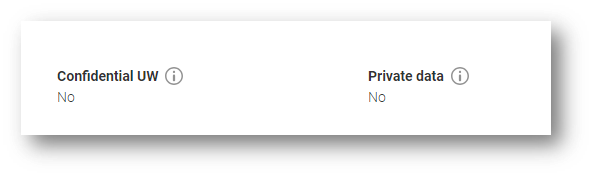
Confidential Underwriting - Sometimes, we receive medical information that wasn’t included in your client’s application, which could lead to special underwriting terms. We understand it can be frustrating when we can’t explain our decision. To help, we use a ‘Confidential Underwriting’ marker in OLP Connect. You can find this marker in the client details section of the Application Management summary. If the marker shows ‘Yes’ we are unable to share the reason for the decision with you.
Private Data – Within OLP Connect, you have the option to hand-off the application to the customer for them to complete in their own time. The customer can confirm if they wish for their health and lifestyle information to be private. If they choose this option, the private data marker will show as ‘Yes’ meaning that you will not be able to view their medical disclosures.
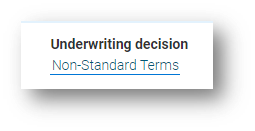
You can find the decision in OLP Connect by searching for the client’s application in the Protection Dashboard.
Within the Application Management summary, scroll down to ‘Product Details’ where you can see the ‘Underwriting decision’ heading. Where applicable, the decision maybe hyperlinked and clicking on it takes you to the decision page of the application where you can view the underwriting decision and any associated changes that may have been made.
How to use OLPC
Setting your contact preferences / 09 Sep 2024 / 02:51
Setting your individual preferences / 10 Sep 2024 / 01:13
OLP Connect - Your protection dashboard / 11 Apr 2024 / 02:55
How to get a quote / 10 Sep 2024 / 02:57
Manage your application / 09 Oct 2024 / 03:42
How to requote an application / 09 Oct 2024 / 01:01
How to enter a start date / 10 Sep 2024 / 01:12
How to accept a decision / 10 Sep 2024 / 02:01
How to start a policy / 10 Sep 2024 / 02:40
Cancelling an application video / 10 Oct 2024 / 02:27
How to access documents / 23 Oct 2024 / 01:21
Completing a discretionary trust / 10 Sep 2024 / 07:27
Completing Digital Declaration of Health / 15 Oct 2024 / 02:01
Hand off / 29 Jun 2026 / 02:26
Existing Business Agent Hub - Further improvements / 23 May 2024 / 01:23
Existing Business Agent Hub / 10 Apr 2024 / 03:39
Existing Agent Business Hub - Updating payment details / 10 Oct 2024 / 03:56
Existing Agent Business Hub - Cancelling a policy / 24 Oct 2024 / 03:36
More from Adviser Protection
Comprehensive resources for Underwriting, Trusts, and much more
Underwriting
Pre-sale support, including underwriting limits, BMI, and how to get an indication of our terms.
Trusts
Our guide to trusts, their benefits, and how to set one up for your client
Direct debit tool
View our direct debit tool and find out more